How to load data from Coda to MongoDB
Learn how to use Airbyte to synchronize your Coda data into MongoDB within minutes.


































Building your pipeline or Using Airbyte
Airbyte is the only open source solution empowering data teams to meet all their growing custom business demands in the new AI era.
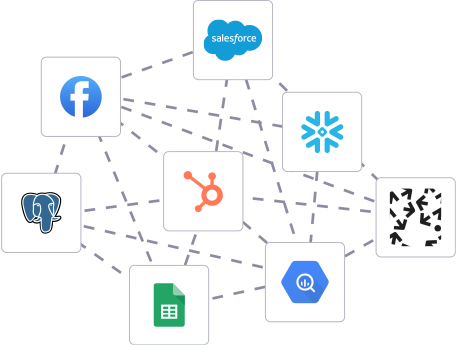
Building in-house pipelines
- Inconsistent and inaccurate data
- Laborious and expensive
- Brittle and inflexible
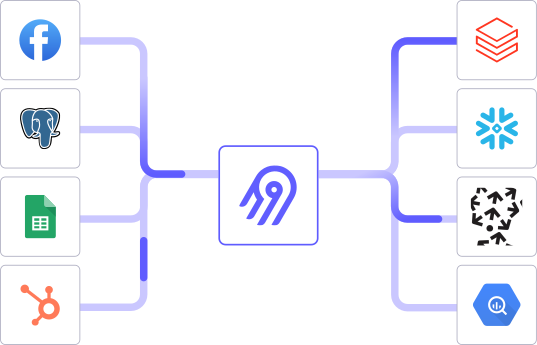
After Airbyte
- Reliable and accurate
- Extensible and scalable for all your needs
- Deployed and governed your way
Start syncing with Airbyte in 3 easy steps within 10 minutes


Take a virtual tour
Demo video of Airbyte Cloud
Demo video of AI Connector Builder
Setup Complexities simplified!

Simple & Easy to use Interface
Airbyte is built to get out of your way. Our clean, modern interface walks you through setup, so you can go from zero to sync in minutes—without deep technical expertise.

Guided Tour: Assisting you in building connections
Whether you’re setting up your first connection or managing complex syncs, Airbyte’s UI and documentation help you move with confidence. No guesswork. Just clarity.

Airbyte AI Assistant that will act as your sidekick in building your data pipelines in Minutes
Airbyte’s built-in assistant helps you choose sources, set destinations, and configure syncs quickly. It’s like having a data engineer on call—without the overhead.
What sets Airbyte Apart
Modern GenAI Workflows
Streamline AI workflows with Airbyte: load unstructured data into vector stores like Pinecone, Weaviate, and Milvus. Supports RAG transformations with LangChain chunking and embeddings from OpenAI, Cohere, etc., all in one operation.
Move Large Volumes, Fast
Quickly get up and running with a 5-minute setup that enables both incremental and full refreshes for databases of any size, seamlessly scaling to handle large data volumes. Our optimized architecture overcomes performance bottlenecks, ensuring efficient data synchronization even as your datasets grow from gigabytes to petabytes.
An Extensible Open-Source Standard
More than 1,000 developers contribute to Airbyte’s connectors, different interfaces (UI, API, Terraform Provider, Python Library), and integrations with the rest of the stack. Airbyte’s AI Connector Builder lets you edit or add new connectors in minutes.
Full Control & Security
Airbyte secures your data with cloud-hosted, self-hosted or hybrid deployment options. Single Sign-On (SSO) and Role-Based Access Control (RBAC) ensure only authorized users have access with the right permissions. Airbyte acts as a HIPAA conduit and supports compliance with CCPA, GDPR, and SOC2.
Fully Featured & Integrated
Airbyte automates schema evolution for seamless data flow, and utilizes efficient Change Data Capture (CDC) for real-time updates. Select only the columns you need, and leverage our dbt integration for powerful data transformations.
Enterprise Support with SLAs
Airbyte Self-Managed Enterprise comes with dedicated support and guaranteed service level agreements (SLAs), ensuring that your data movement infrastructure remains reliable and performant, and expert assistance is available when needed.
What our users say

Raman Singh

Predictable, straightforward pricing model that simplified budgeting and significantly reduced overall spend

Chase Zieman

“Airbyte helped us accelerate our progress by years, compared to our competitors. We don’t need to worry about connectors and focus on creating value for our users instead of building infrastructure. That’s priceless. The time and energy saved allows us to disrupt and grow faster.”

Rupak Patel

"With Airbyte, we could just push a few buttons, allow API access, and bring all the data into Google BigQuery. By blending all the different marketing data sources, we can gain valuable insights."
How to Sync to Manually
Step 1: Export Data from Coda
Begin by exporting the data from your Coda document. Open the Coda table you wish to export, and use the "Export" option. Choose a suitable format like CSV or JSON, as MongoDB can easily import these formats. Save the exported file to your local system.
Step 2: Set Up MongoDB Environment
If you haven't set up MongoDB yet, install it on your system. You can download the MongoDB server from the MongoDB official website. Follow the installation instructions for your operating system. Once installed, start the MongoDB server using the command `mongod`.
Step 3: Prepare MongoDB Database and Collection
Open your command line interface and use the MongoDB shell (`mongo`) to create a new database and collection. For example, you can create a database named `codaData` and a collection named `codaCollection` using the following commands:
```bash
use codaData
db.createCollection("codaCollection")
```
Step 4: Parse Exported Data
Read the exported file from Coda using a suitable programming language. For instance, if the file is in CSV format, you can use Python with the `csv` module to parse it. If it's JSON, use a JSON parser. Ensure that the data is correctly structured to match the MongoDB document format.
Step 5: Connect to MongoDB
Use a MongoDB client library in your programming language of choice to connect to your MongoDB instance. For Python, you can use `pymongo`. Establish a connection to the `codaData` database and access the `codaCollection` collection:
```python
from pymongo import MongoClient
client = MongoClient('localhost', 27017)
db = client.codaData
collection = db.codaCollection
```
Step 6: Insert Data into MongoDB
Convert the parsed data into dictionary format (if using Python) and insert it into the MongoDB collection. For CSV, each row should be converted to a dictionary before insertion:
```python
import csv
with open('yourfile.csv', mode='r') as file:
csv_reader = csv.DictReader(file)
for row in csv_reader:
collection.insert_one(row)
```
For JSON, you can directly insert the data if it’s already in the correct format.
Step 7: Verify Data Transfer
After inserting the data, verify that the data transfer was successful. Use the MongoDB shell or a GUI tool like MongoDB Compass to check the documents in `codaCollection`. Ensure that all data fields are correctly populated and correspond to the original data from Coda.
By following these steps, you can successfully move data from Coda to MongoDB without relying on third-party connectors or integrations.