How to load data from Glassfrog to Clickhouse
Learn how to use Airbyte to synchronize your Glassfrog data into Clickhouse within minutes.


































Building your pipeline or Using Airbyte
Airbyte is the only open source solution empowering data teams to meet all their growing custom business demands in the new AI era.
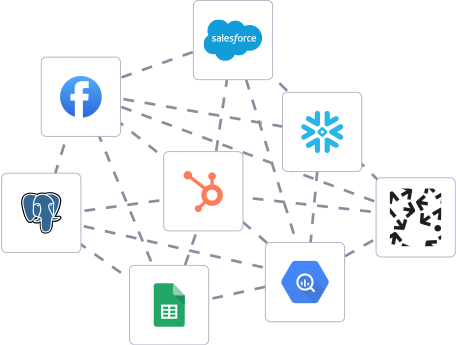
Building in-house pipelines
- Inconsistent and inaccurate data
- Laborious and expensive
- Brittle and inflexible
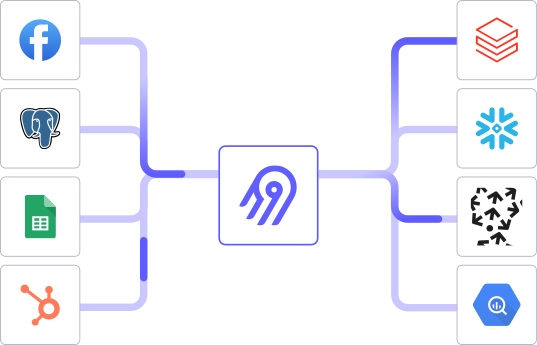
After Airbyte
- Reliable and accurate
- Extensible and scalable for all your needs
- Deployed and governed your way
Start syncing with Airbyte in 3 easy steps within 10 minutes


Take a virtual tour
Demo video of Airbyte Cloud
Demo video of AI Connector Builder
Setup Complexities simplified!

Simple & Easy to use Interface
Airbyte is built to get out of your way. Our clean, modern interface walks you through setup, so you can go from zero to sync in minutes—without deep technical expertise.

Guided Tour: Assisting you in building connections
Whether you’re setting up your first connection or managing complex syncs, Airbyte’s UI and documentation help you move with confidence. No guesswork. Just clarity.

Airbyte AI Assistant that will act as your sidekick in building your data pipelines in Minutes
Airbyte’s built-in assistant helps you choose sources, set destinations, and configure syncs quickly. It’s like having a data engineer on call—without the overhead.
What sets Airbyte Apart
Modern GenAI Workflows
Streamline AI workflows with Airbyte: load unstructured data into vector stores like Pinecone, Weaviate, and Milvus. Supports RAG transformations with LangChain chunking and embeddings from OpenAI, Cohere, etc., all in one operation.
Move Large Volumes, Fast
Quickly get up and running with a 5-minute setup that enables both incremental and full refreshes for databases of any size, seamlessly scaling to handle large data volumes. Our optimized architecture overcomes performance bottlenecks, ensuring efficient data synchronization even as your datasets grow from gigabytes to petabytes.
An Extensible Open-Source Standard
More than 1,000 developers contribute to Airbyte’s connectors, different interfaces (UI, API, Terraform Provider, Python Library), and integrations with the rest of the stack. Airbyte’s AI Connector Builder lets you edit or add new connectors in minutes.
Full Control & Security
Airbyte secures your data with cloud-hosted, self-hosted or hybrid deployment options. Single Sign-On (SSO) and Role-Based Access Control (RBAC) ensure only authorized users have access with the right permissions. Airbyte acts as a HIPAA conduit and supports compliance with CCPA, GDPR, and SOC2.
Fully Featured & Integrated
Airbyte automates schema evolution for seamless data flow, and utilizes efficient Change Data Capture (CDC) for real-time updates. Select only the columns you need, and leverage our dbt integration for powerful data transformations.
Enterprise Support with SLAs
Airbyte Self-Managed Enterprise comes with dedicated support and guaranteed service level agreements (SLAs), ensuring that your data movement infrastructure remains reliable and performant, and expert assistance is available when needed.
What our users say

Raman Singh

Predictable, straightforward pricing model that simplified budgeting and significantly reduced overall spend

Chase Zieman

“Airbyte helped us accelerate our progress by years, compared to our competitors. We don’t need to worry about connectors and focus on creating value for our users instead of building infrastructure. That’s priceless. The time and energy saved allows us to disrupt and grow faster.”

Rupak Patel

"With Airbyte, we could just push a few buttons, allow API access, and bring all the data into Google BigQuery. By blending all the different marketing data sources, we can gain valuable insights."
How to Sync to Manually
Step 1: Export Data from Glassfrog
Begin by exporting the data you need from Glassfrog. Log in to your Glassfrog account, navigate to the data section you wish to extract, and use the export functionality (if available) to download the data in a CSV or Excel format. Ensure that the export includes all necessary fields and records for your analysis.
Step 2: Prepare the Exported Data
Open the exported file and clean the data to ensure consistency and accuracy. Remove any unnecessary columns, correct data types, and handle any missing or erroneous data. Save the cleaned data in a CSV format, which is easily ingestible by ClickHouse.
Step 3: Set Up ClickHouse Environment
If you haven't already, install ClickHouse on your server. You can use the official ClickHouse documentation to guide you through the installation process. Ensure that your ClickHouse instance is running and accessible.
Step 4: Create a Table in ClickHouse
In ClickHouse, create a table that matches the structure of your cleaned data file. Use the `CREATE TABLE` statement to define the schema, including column names and data types, that aligns with your CSV file. For example:
```sql
CREATE TABLE glassfrog_data (
column1 DataType1,
column2 DataType2,
...
) ENGINE = MergeTree() ORDER BY (column1);
```
Step 5: Transfer the CSV File to the Server
Securely transfer the CSV file from your local machine to the server where ClickHouse is installed. This can be done using SCP (secure copy) or any other secure file transfer method. Place the file in a directory that the ClickHouse service can access.
Step 6: Import Data into ClickHouse
Use the `clickhouse-client` tool to import the data into the ClickHouse table. Execute the following command in the terminal, adjusting the parameters to match your file path and server details:
```bash
clickhouse-client --query="INSERT INTO glassfrog_data FORMAT CSV" < /path/to/your/cleaned_data.csv
```
This command reads the CSV file and inserts the data into the specified ClickHouse table.
Step 7: Verify Data Integrity
After importing, verify that the data has been correctly transferred. Use SQL queries to check the row count, sample data, and perform checksums to ensure data integrity. For example:
```sql
SELECT COUNT(*) FROM glassfrog_data;
SELECT * FROM glassfrog_data LIMIT 10;
```
This helps confirm that the data was successfully imported and matches the original dataset from Glassfrog.
By following these steps, you can effectively move data from Glassfrog to a ClickHouse warehouse manually without relying on third-party connectors or integrations.