
Summarize this article with:




Trusted by data-driven companies










Building your pipeline or Using Airbyte
Airbyte is the only open source solution empowering data teams to meet all their growing custom business demands in the new AI era.
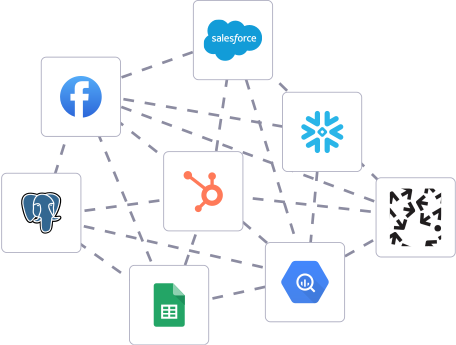
- Inconsistent and inaccurate data
- Laborious and expensive
- Brittle and inflexible
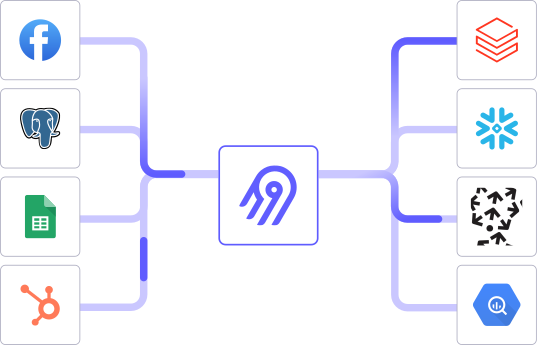
- Reliable and accurate
- Extensible and scalable for all your needs
- Deployed and governed your way
Start syncing with Airbyte in 3 easy steps within 10 minutes


Take a virtual tour
Demo video of Airbyte Cloud
Demo video of AI Connector Builder
Setup Complexities simplified!

Simple & Easy to use Interface
Airbyte is built to get out of your way. Our clean, modern interface walks you through setup, so you can go from zero to sync in minutes—without deep technical expertise.

Guided Tour: Assisting you in building connections
Whether you’re setting up your first connection or managing complex syncs, Airbyte’s UI and documentation help you move with confidence. No guesswork. Just clarity.

Airbyte AI Assistant that will act as your sidekick in building your data pipelines in Minutes
Airbyte’s built-in assistant helps you choose sources, set destinations, and configure syncs quickly. It’s like having a data engineer on call—without the overhead.
What sets Airbyte Apart
Modern GenAI Workflows
Move Large Volumes, Fast
An Extensible Open-Source Standard
Full Control & Security
Fully Featured & Integrated
Enterprise Support with SLAs
What our users say

Andre Exner

"For TUI Musement, Airbyte cut development time in half and enabled dynamic customer experiences."

Chase Zieman

“Airbyte helped us accelerate our progress by years, compared to our competitors. We don’t need to worry about connectors and focus on creating value for our users instead of building infrastructure. That’s priceless. The time and energy saved allows us to disrupt and grow faster.”

Rupak Patel

"With Airbyte, we could just push a few buttons, allow API access, and bring all the data into Google BigQuery. By blending all the different marketing data sources, we can gain valuable insights."
Ensure you have access to the Teradata database. This includes having the necessary credentials (username and password) and the Teradata client tools installed on your local machine. The Teradata SQL Assistant (now called Teradata Studio) or BTEQ (Basic Teradata Query) will be used for executing SQL queries and exporting data.
Open your Teradata SQL Assistant or Teradata Studio. Use your credentials to connect to the Teradata database. Ensure the connection is successful by listing a few tables or running a simple query.
Write a SQL query to select the data you wish to export. This could be a simple `SELECT * FROM table_name;` or a more complex query with joins and conditions. Test your query to ensure it returns the expected results.
In Teradata SQL Assistant, go to the 'File' menu and select 'Export Results'. Choose the option to save the results to a file. Specify a location on your local machine and select 'CSV' as the file format. Run the query again, and the results will be exported to the specified CSV file.
If you prefer using BTEQ, prepare a script file with your SQL query. Use the `.EXPORT` command to specify the output file and format it as CSV. Execute the script in the BTEQ command-line interface. For example:
```sql
.LOGON your_teradata_server/username,password;
.EXPORT FILE = /path/to/output.csv
SELECT * FROM your_table;
.EXPORT RESET
.LOGOFF;
```
Run the script to export the data to a CSV file.
Open the CSV file using a spreadsheet application like Excel or a text editor to ensure the data has been correctly exported. Check for any inconsistencies or issues with the data formatting, such as missing fields or incorrect delimiters.
If you need to perform this export regularly, consider automating the process using a batch script or scheduled task. You can create a batch file that runs the BTEQ script or uses a command-line interface to execute the SQL Assistant export. Schedule this task to run at your desired frequency using your operating system's task scheduler.
By following these steps, you can effectively move data from a Teradata database to a local CSV file without relying on third-party connectors or integrations.
FAQs
What is ETL?

ETL, an acronym for Extract, Transform, Load, is a vital data integration process. It involves extracting data from diverse sources, transforming it into a usable format, and loading it into a database, data warehouse or data lake. This process enables meaningful data analysis, enhancing business intelligence.
What is ELT?
ELT, standing for Extract, Load, Transform, is a modern take on the traditional ETL data integration process. In ELT, data is first extracted from various sources, loaded directly into a data warehouse, and then transformed. This approach enhances data processing speed, analytical flexibility and autonomy.
Difference between ETL and ELT?
ETL and ELT are critical data integration strategies with key differences. ETL (Extract, Transform, Load) transforms data before loading, ideal for structured data. In contrast, ELT (Extract, Load, Transform) loads data before transformation, perfect for processing large, diverse data sets in modern data warehouses. ELT is becoming the new standard as it offers a lot more flexibility and autonomy to data analysts.
What should you do next?
Hope you enjoyed the reading. Here are the 3 ways we can help you in your data journey:


