
Summarize this article with:





Trusted by data-driven companies










Building your pipeline or Using Airbyte
Airbyte is the only open source solution empowering data teams to meet all their growing custom business demands in the new AI era.
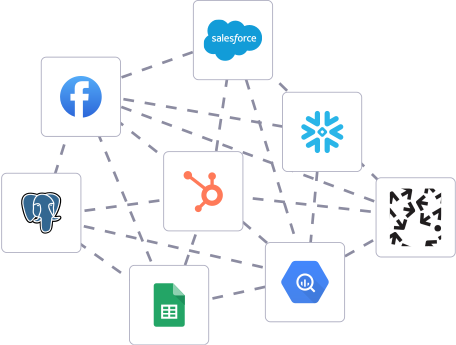
- Inconsistent and inaccurate data
- Laborious and expensive
- Brittle and inflexible
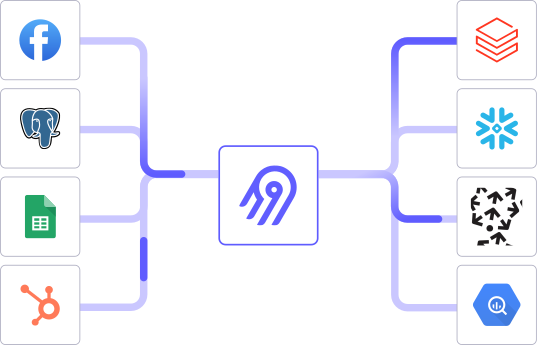
- Reliable and accurate
- Extensible and scalable for all your needs
- Deployed and governed your way
Start syncing with Airbyte in 3 easy steps within 10 minutes


Take a virtual tour
Demo video of Airbyte Cloud
Demo video of AI Connector Builder
Setup Complexities simplified!

Simple & Easy to use Interface
Airbyte is built to get out of your way. Our clean, modern interface walks you through setup, so you can go from zero to sync in minutes—without deep technical expertise.

Guided Tour: Assisting you in building connections
Whether you’re setting up your first connection or managing complex syncs, Airbyte’s UI and documentation help you move with confidence. No guesswork. Just clarity.

Airbyte AI Assistant that will act as your sidekick in building your data pipelines in Minutes
Airbyte’s built-in assistant helps you choose sources, set destinations, and configure syncs quickly. It’s like having a data engineer on call—without the overhead.
What sets Airbyte Apart
Modern GenAI Workflows
Move Large Volumes, Fast
An Extensible Open-Source Standard
Full Control & Security
Fully Featured & Integrated
Enterprise Support with SLAs
What our users say

Andre Exner

"For TUI Musement, Airbyte cut development time in half and enabled dynamic customer experiences."

Chase Zieman

“Airbyte helped us accelerate our progress by years, compared to our competitors. We don’t need to worry about connectors and focus on creating value for our users instead of building infrastructure. That’s priceless. The time and energy saved allows us to disrupt and grow faster.”

Rupak Patel

"With Airbyte, we could just push a few buttons, allow API access, and bring all the data into Google BigQuery. By blending all the different marketing data sources, we can gain valuable insights."
Begin by exporting the data from your Coda document. Open your Coda document, navigate to the section with the data you need, and click on the table options. Choose "Download CSV" or "Export" to export your data in a CSV format. This will save the file locally to your computer, which you can then use for importing into Firestore.
Go to the Google Cloud Console (https://console.cloud.google.com) and create a new project or select an existing project where you want to store the data. Make sure that the Firestore API is enabled for your project. If not, navigate to the "API & Services" section, search for "Firestore API," and enable it.
Within the Google Cloud Console, go to the Firestore section and click on "Create database." Choose the start in production mode for security purposes and select the appropriate location setting for your data. This will set up your Firestore database where you will import the Coda data.
Open the CSV file you exported from Coda using a spreadsheet application like Microsoft Excel or Google Sheets. Ensure that the data is cleaned and formatted correctly. Add any necessary columns or headers that match your Firestore database structure. Save any changes you make to the CSV file.
Use a programming language like Python to read the CSV file and insert its contents into Firestore. Install the necessary libraries (`google-cloud-firestore` for Firestore access and `csv` for CSV parsing). Write a script that authenticates with Google Cloud using service account credentials, reads the CSV data, and uploads each row as a document in Firestore. Example:
```python
import csv
from google.cloud import firestore
# Initialize Firestore client
db = firestore.Client()
# Open CSV file
with open('path/to/your/data.csv', mode='r') as file:
reader = csv.DictReader(file)
for row in reader:
# Add data to Firestore
db.collection('YourCollectionName').add(dict(row))
```
Download a service account JSON key from the Google Cloud Console (under IAM & Admin > Service Accounts). Set the environment variable `GOOGLE_APPLICATION_CREDENTIALS` to the path of the JSON key file. Run your script in the terminal or command prompt using Python. The script will parse the CSV and upload each entry to the Firestore collection.
After running the script, verify that all data has been successfully imported into Firestore. Go back to the Firestore section in the Google Cloud Console, and check the collection and documents. Ensure that the data matches what was in the CSV file and that all entries are present and correct.
By following these steps, you can efficiently move data from Coda to Google Firestore without relying on third-party connectors or integrations.
FAQs
What is ETL?

ETL, an acronym for Extract, Transform, Load, is a vital data integration process. It involves extracting data from diverse sources, transforming it into a usable format, and loading it into a database, data warehouse or data lake. This process enables meaningful data analysis, enhancing business intelligence.
Coda is a comprehensive solution that combines documents, spreadsheets, and building tools into a single platform. With this tool, project managers can track OKRs while also brainstorming with their teams.
Coda's API provides access to a wide range of data types, including:
1. Documents: Access to all the documents in a user's Coda account, including their metadata and content.
2. Tables: Access to the tables within a document, including their columns, rows, and cell values.
3. Rows: Access to individual rows within a table, including their cell values and metadata.
4. Columns: Access to individual columns within a table, including their cell values and metadata.
5. Formulas: Access to the formulas within a table, including their syntax and results.
6. Views: Access to the views within a table, including their filters, sorts, and groupings.
7. Users: Access to the users within a Coda account, including their metadata and permissions.
8. Groups: Access to the groups within a Coda account, including their metadata and membership.
9. Integrations: Access to the integrations within a Coda account, including their metadata and configuration.
10. Webhooks: Access to the webhooks within a Coda account, including their metadata and configuration.
Overall, Coda's API provides a comprehensive set of data types that developers can use to build powerful integrations and applications.
What is ELT?
ELT, standing for Extract, Load, Transform, is a modern take on the traditional ETL data integration process. In ELT, data is first extracted from various sources, loaded directly into a data warehouse, and then transformed. This approach enhances data processing speed, analytical flexibility and autonomy.
Difference between ETL and ELT?
ETL and ELT are critical data integration strategies with key differences. ETL (Extract, Transform, Load) transforms data before loading, ideal for structured data. In contrast, ELT (Extract, Load, Transform) loads data before transformation, perfect for processing large, diverse data sets in modern data warehouses. ELT is becoming the new standard as it offers a lot more flexibility and autonomy to data analysts.
What should you do next?
Hope you enjoyed the reading. Here are the 3 ways we can help you in your data journey:


